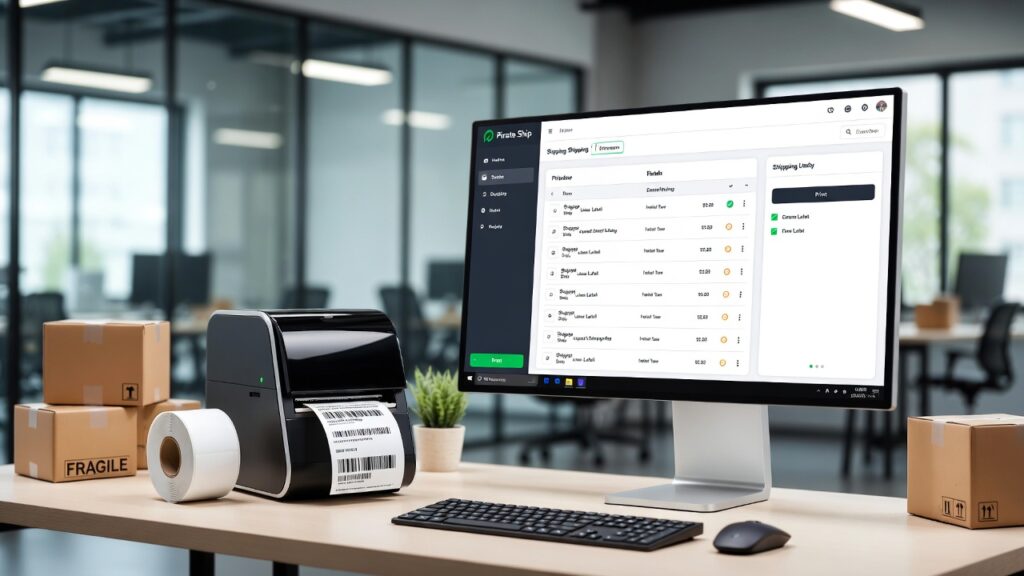
Tired of standing in long lines at the post office, overpaying for postage, or wrestling with blurry, misaligned shipping labels that waste your time and supplies? If you’re a small business owner, Etsy seller, eBay merchant, Shopify store operator, or just someone shipping packages regularly, Pirate Ship changes everything. This free shipping software gives everyone access to discounted commercial USPS and UPS rates—no monthly fees, no subscriptions, just savings up to 89% off retail prices.
In this updated 2026 guide, we’ll walk you through exactly how to print labels from Pirate Ship with crystal-clear, foolproof steps. Whether you’re using a basic desktop inkjet printer, a popular 4×6 thermal label printer like Rollo or Brother QL-series, or even printing from your phone, you’ll get perfect, scannable labels every time. We’ll cover setup, common pitfalls (like sideways printing, blank pages, or cut-off barcodes), batch processing for high-volume days, and pro tips that go beyond basic tutorials.
By following this comprehensive guide—based on official Pirate Ship support documentation, real-user experiences, and the latest browser/printer compatibility updates—you’ll save hours, reduce errors, and cut shipping costs dramatically. Let’s set sail and make printing labels effortless.
What You Need Before Printing Labels from Pirate Ship
Before diving into the printing process, gather these essentials to avoid frustration later.
Create and Verify Your Pirate Ship Account
Head to pirateship.com and sign up (or log in) with your email. Verification is quick—confirm via the link sent to your inbox. Add your Ship From address under Settings > Addresses; this auto-fills for future labels and helps with rate accuracy. Pro tip: Verify your email and phone for faster support access if issues arise.
Recommended Printers for Pirate Ship (2026 Recommendations)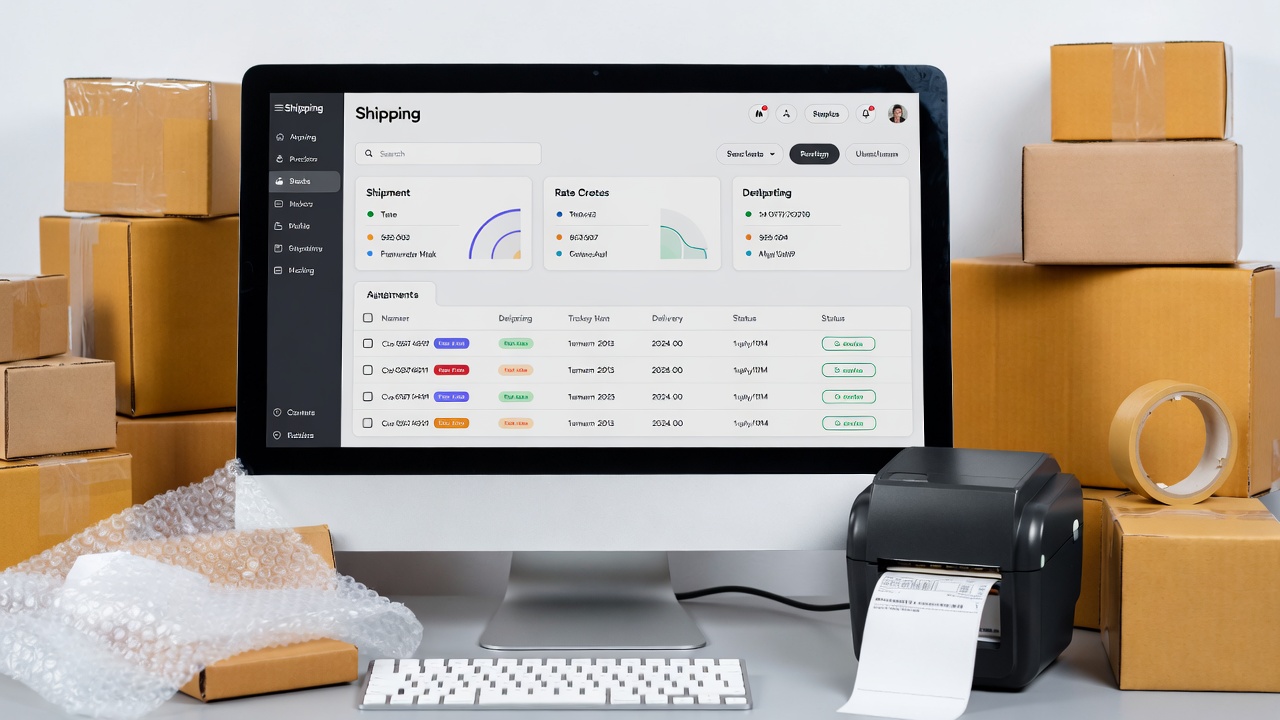
Pirate Ship works with virtually any printer—no special hardware required—but the right one makes a huge difference in speed and cost.
- Desktop printers (inkjet or laser): Use standard 8.5×11″ paper or half-sheet sticker labels. Great for low-volume shippers.
- Examples: Any recent HP, Canon, Brother, or Epson model.
- Pros: No extra purchase if you already own one.
- Cons: Ink/toner costs add up; slower for batches.
- Thermal label printers (direct thermal, no ink needed): Ideal for 4×6″ labels—perfect for e-commerce sellers shipping 10+ packages weekly.
- Top picks in 2026:
- Rollo Wireless X1040 (best overall for wireless convenience and low running costs).
- Brother QL-1110NWB (wide-format support, highly recommended by Pirate Ship).
- MUNBYN or Nelko models (budget-friendly, reliable for small businesses).
- Zebra ZSB series (good for integration with apps).
- Top picks in 2026:
Here’s a quick comparison table:
| Printer Type | Best Models (2026) | Cost per Label | Speed | Best For | Compatibility Notes |
|---|---|---|---|---|---|
| Desktop Inkjet/Laser | HP DeskJet, Brother HL-L | $0.10–$0.30 | Medium | Low volume, home use | Any browser; use sticker paper |
| Thermal 4×6″ | Rollo X1040, Brother QL-1110NWB | ~$0.02–$0.05 | Fast | E-commerce, 10+ daily | Chrome/Edge best; driver required |
| Thermal 2×7″ | Brother QL-700/800 series | ~$0.04 | Fast | USPS-specific (e.g., flats) | Limited to certain USPS services |
Thermal printers shine because they use heat-sensitive labels—no ink refills, crisp barcodes, and smudge-proof results.
Label Supplies and Paper Options
- For desktop: Avery 5164/8164 half-sheet labels or plain paper + clear packing tape.
- For thermal: 4×6″ direct thermal rolls (compatible with USPS/UPS; avoid cheap no-name rolls that jam).
- For 2×7″: Specific rolls for USPS flats or large envelopes.
Always buy from reputable sources to ensure sensor compatibility.
Essential Software and Browser Setup
Use Google Chrome (most reliable for PDF previews and scaling). Update to the latest version. Install printer drivers from the manufacturer’s site (not Windows defaults for thermal models). Disable any “enhanced” modes in Brother drivers if issues occur.
Step-by-Step: How to Create and Buy a Shipping Label on Pirate Ship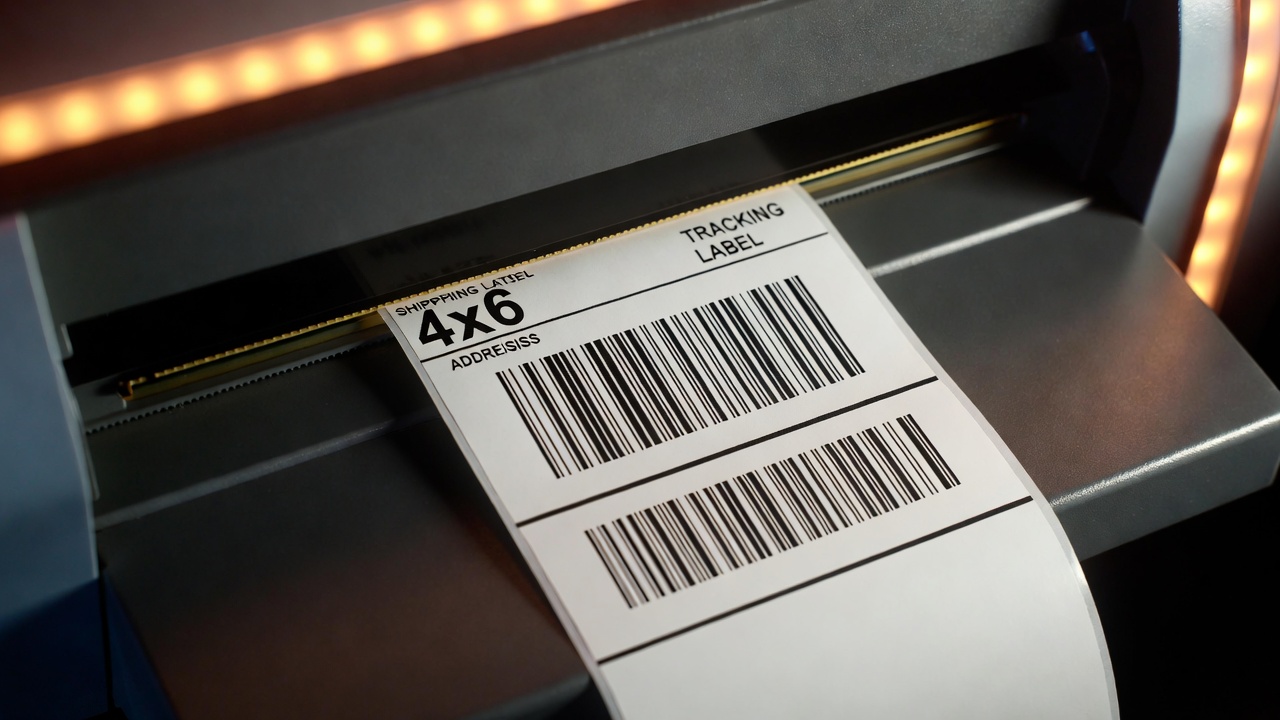
- Log in to your dashboard at pirateship.com.
- Click Create a Single Label (or import from Etsy/Shopify/eBay if integrated).
- Enter Ship To address—paste from clipboard; Pirate Ship auto-validates and corrects typos.
- Confirm or add Ship From (your verified address).
- Add package details: weight (use a digital scale), dimensions, packaging type (box, poly mailer, etc.).
- Compare rates: USPS First Class, Priority Mail, Ground Advantage vs. UPS Ground, SurePost. Select the cheapest/best option.
- Add insurance, signature confirmation, or extras if needed.
- Review everything, then click Buy Label. Funds deduct from your balance (add via credit card/PayPal).
- Confirmation appears—now you’re ready to print.
How to Print Labels from Pirate Ship – Core Methods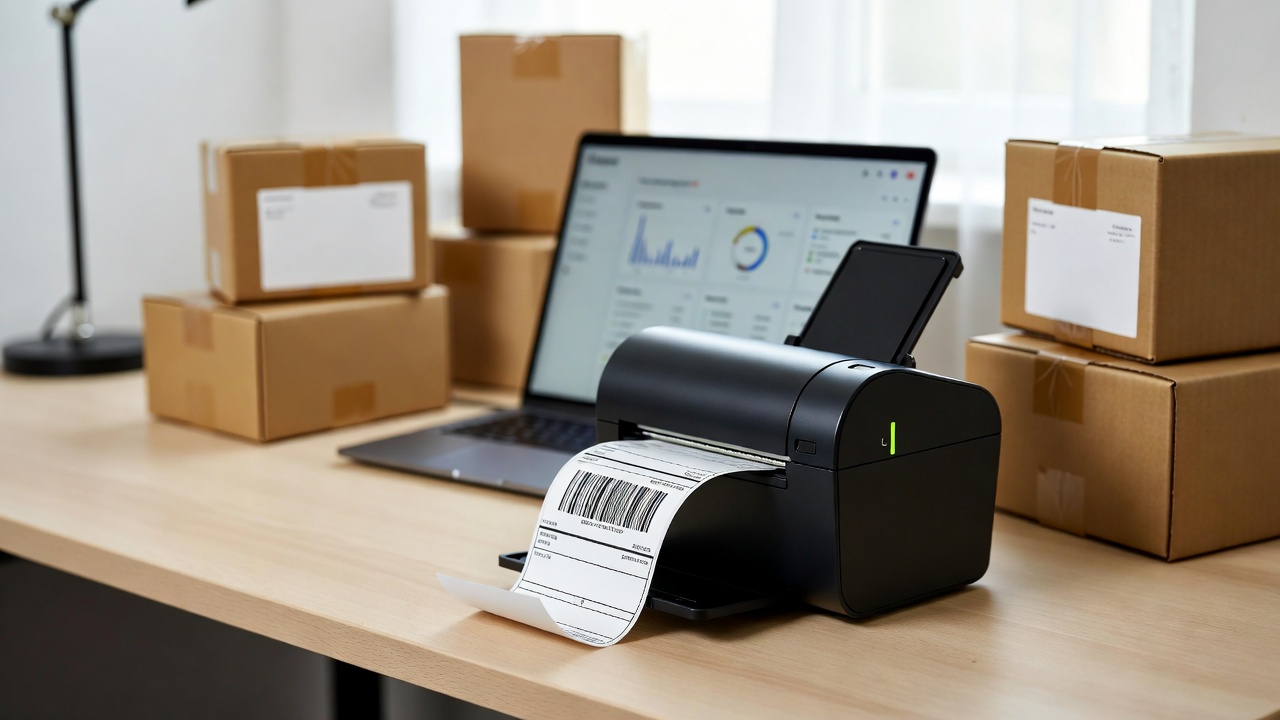
After buying, the Print Label screen appears. Key: Match formats in Pirate Ship AND your printer dialog.
Choosing the Right Label Format in Pirate Ship
- 8.5×11″ (1 or 2 per page) — Desktop printers.
- 4×6″ — Thermal label printers (USPS & UPS).
- 2×7″ — Specific USPS services (limited; requires compatible printer).
Select at the top of the print preview.
Printing on a Desktop Printer (Windows & Mac)
- Click Print Label.
- Choose 8.5×11″ format (1 or 2 labels).
- In print dialog:
- Select your printer.
- Set paper size to Letter (8.5×11″).
- Scale: 100% or Actual Size (no “Fit to Page”).
- Orientation: Portrait.
- Margins: Default or None.
- Print on plain paper first to test alignment, then tape securely (tape over non-barcode areas only).
- For stickers: Load label sheet; ensure no scaling.
Printing on a 4×6″ Thermal Label Printer
- In Pirate Ship, select 4×6″ PDF.
- Install/update driver (e.g., Rollo, Brother).
- In print dialog:
- Paper size: 4×6″ or 100x150mm.
- Scale: 100%.
- No headers/footers.
- Calibrate printer per manual (feed 1-2 labels).
- Print—labels eject perfectly sized.
Chrome usually works best; if sideways, check custom paper sizes in driver.
Printing on a 2×7″ Label Printer (USPS-Specific)
Select 2×7″ or 99019 format. Use 59x190mm if exact size missing. Limited to certain USPS flats.
Mobile Printing from Pirate Ship (iOS & Android)
- Create/buy label in mobile browser or app.
- Tap Print → Save as PDF.
- Use AirPrint (iOS) or direct print apps (Android) with compatible thermal printers (e.g., Zebra ZSB app).
- For thermal: Pair via Bluetooth/Wi-Fi; select PDF and print.
Printing Multiple Labels at Once (Batch Printing)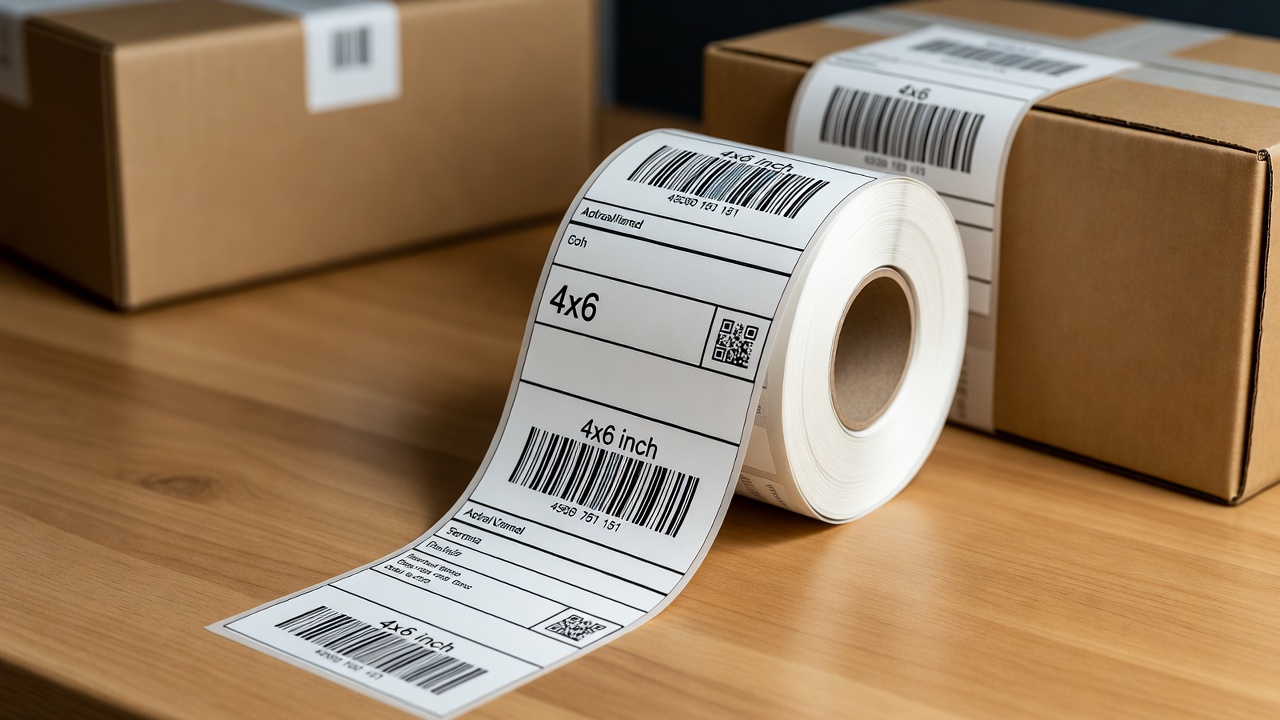
For 10+ orders:
- Import CSV or use integrations (Etsy, Shopify).
- Select labels in Shipments grid (checkboxes).
- Click Bulk Actions → Print Labels.
- Choose format; print in batches to avoid overload.
- Time-saver: Preset common packages/weights.
Advanced Tips and Expert Insights for Perfect Prints Every Time
- Optimize quality: Set density high for thermal; use “Best” mode on desktop.
- Save labels: Download PDF/ZPL for reprinting or sharing.
- Integrations: Auto-import from e-commerce—huge time-saver.
- Cost hacks: Always compare USPS vs. UPS; use Ground Advantage for under 1 lb.
- 2026 updates: Improved mobile PDF handling; better Chrome scaling; expanded UPS access.
Common Problems and How to Fix Them (Troubleshooting Guide)
Even with the best setup, printing issues can pop up—often due to browser quirks, driver mismatches, or overlooked settings. Here’s a comprehensive troubleshooting section based on Pirate Ship’s official support resources (updated as of 2026) and frequent user-reported fixes. These cover 90%+ of problems reported across forums, Reddit, and Pirate Ship’s help articles.
Labels Printing Blank, Too Small, Cut Off, or Sideways
This is the #1 complaint, especially with 4×6″ thermal printers.
- Cause: Scaling set to “Fit to Page,” margins enabled, wrong orientation (portrait instead of landscape), or mismatched paper size between Pirate Ship and printer driver.
- Fix:
- In Pirate Ship: Select the correct format (e.g., 4×6″ PDF).
- In print dialog (Chrome/Edge recommended):
- Paper size: Match exactly (4 × 6 in or 100 × 150 mm).
- Scale: 100% or “Actual Size.”
- Orientation: Landscape (for most 4×6 thermal prints).
- Margins: None or Minimum.
- Uncheck “Headers and Footers.”
- For thermal printers: Calibrate the sensor (hold feed button until it flashes, then release after 2-3 labels feed).
- Test: Print on plain paper first to check alignment without wasting labels.
- Browser tip: If using Firefox or Safari, switch to Chrome—it’s the most reliable for PDF rendering in Pirate Ship.
Partial Prints or Feed Errors
- Cause: Dirty sensors, incorrect label stock (gaps not matching printer expectations), low-quality rolls, or driver issues.
- Fix:
- Clean printer sensors/head with isopropyl alcohol and lint-free cloth.
- Use high-quality direct thermal labels (avoid glossy or off-brand rolls that jam).
- Reinstall driver from manufacturer site (Brother, Rollo, etc.—avoid generic Windows drivers).
- For Brother QL-series: Use standard driver, not “enhanced” mode (common Windows 11 conflict).
Blurry, Faded, or Pixelated Labels
- Cause: Low print density/quality settings, old thermal head, wrong label type, or low ink (desktop printers).
- Fix:
- Thermal: Increase density in driver settings (e.g., “Dark” or 100%).
- Desktop: Use “Best” or “High” quality mode; replace ink/toner if faded.
- Ensure labels are direct thermal (not thermal transfer requiring ribbon).
Browser-Specific Glitches (Chrome vs. Firefox vs. Edge)
- Chrome: Generally best—fewest scaling issues.
- Firefox: May add unwanted margins; disable “Print Background Graphics.”
- Edge: Works well but sometimes defaults to “Fit.”
- Quick fix for any: Download the label as PDF first, then open in Adobe Reader or Preview and print from there (bypasses browser quirks).
Printer Not Recognized or Compatibility Issues
- Update OS, browser, and drivers.
- Restart printer/computer.
- For wireless models (Rollo X1040, Brother QL-1110NWB): Ensure stable Wi-Fi/Bluetooth connection.
- If all fails: Pirate Ship allows downloading as PDF/ZPL or generating a share link—send to another device/printer.
Quick-Reference Troubleshooting Table:
| Issue | Likely Cause | Fast Fix | Prevention Tip |
|---|---|---|---|
| Sideways / Rotated wrong | Portrait instead of Landscape | Set to Landscape + 100% scale | Always check orientation first |
| Cut off / Too small | Fit to Page or margins | Margins: None; Scale: 100% | Print test on plain paper |
| Blank pages | Wrong paper size in driver | Match 4×6″ exactly in driver settings | Calibrate thermal printer regularly |
| Feed jams | Dirty sensor / bad labels | Clean sensor; use quality rolls | Buy from recommended suppliers |
| Faded print | Low density or old head | Increase density; clean/replace head | Use “Best” quality mode |
Best Practices for Attaching and Using Your Printed Labels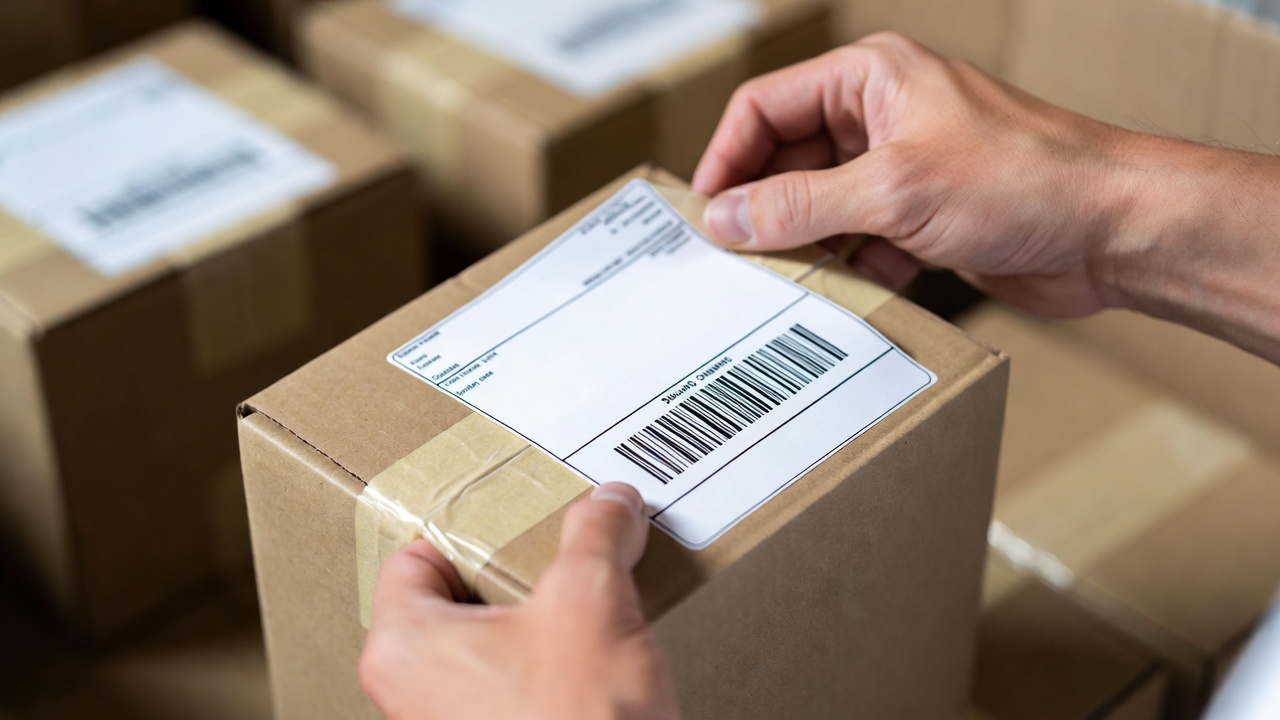
Once printed, proper application ensures scannability and compliance.
- Attachment:
- Use clear packing tape on all four sides + center (avoid covering barcode or tracking number).
- For thermal labels: They’re smudge-proof and weather-resistant—ideal for outdoor drop-offs.
- Desktop paper labels: Cut excess, tape securely without wrinkles.
- Drop-off / Pickup:
- USPS: Schedule free Carrier Pickup via Pirate Ship or drop at post office/Blue Box.
- UPS: Drop at Access Point or schedule pickup (extra fee may apply).
- Always keep digital copy of label (PDF) until delivery confirmed.
- Tracking:
- Pirate Ship auto-adds tracking to your dashboard.
- If tracking doesn’t appear in eBay/Shopify, it’s usually an API delay—check Pirate Ship directly.
Frequently Asked Questions (FAQs)
Do I need a special printer for Pirate Ship? No—any printer works. Desktop inkjet/laser for occasional use; thermal (4×6″) for frequent shipping to save time and money.
Can I print Pirate Ship labels without a printer? Yes—download as PDF and take to a print shop, or generate a share link and send to someone else to print.
Why won’t my 4×6 label print full size? Most often scaling or margins issue. Set to 100% scale, no margins, landscape orientation, and match paper size in driver.
How do I reprint a label? Go to Shipments > Find the label > Click Reprint. No extra charge for reprints.
Is Pirate Ship still free in 2026? Yes—completely free for USPS and UPS commercial rates. No monthly fees, subscriptions, or markups.
Differences between USPS and UPS label printing? USPS supports 4×6″ and 2×7″ formats; UPS is 4×6″ only. Steps are identical after rate selection.
Can I print from my phone? Yes—save label as PDF in mobile browser, then use AirPrint (iOS) or compatible apps (Android) with wireless thermal printers.
What if my label jams or printer errors out mid-batch? Pause, fix issue (e.g., reload labels), then reprint only affected labels from the Shipments grid.
Which thermal printer is best for Pirate Ship in 2026? Rollo Wireless X1040 (top wireless pick), Brother QL-1110NWB (wide-format reliability), or Arkscan/Zebra models for LAN setups. All work seamlessly with Pirate Ship’s 4×6″ format.
How do I calibrate my thermal printer? Most models: Hold feed button until lights flash, feed 2-3 blank labels. Check your manual for exact steps.
Printing labels from Pirate Ship doesn’t have to be frustrating or expensive. With the steps in this 2026-updated guide—from account setup and rate comparison to precise printing settings, batch processing, and in-depth troubleshooting—you’re equipped to handle any shipping scenario efficiently.
Whether you’re fulfilling Etsy orders, sending eBay packages, running a Shopify store, or just mailing gifts, Pirate Ship delivers real savings (often 50-89% off retail) and simplicity. Start by signing up at pirateship.com (it’s free and takes minutes), add funds, and test a label today.